How a Nearly Headless Dinosaur Sent Me Down an Amazon Privacy Rabbit Hole
This experiment didn't start as an experiment. It started with a slammed door, a small wooden stegosaurus nameplate launching off a doorframe, sailing over a stair railing in what I can only describe as a brief and dramatic flight, and landing on the floor below looking like Nearly Headless Nick...
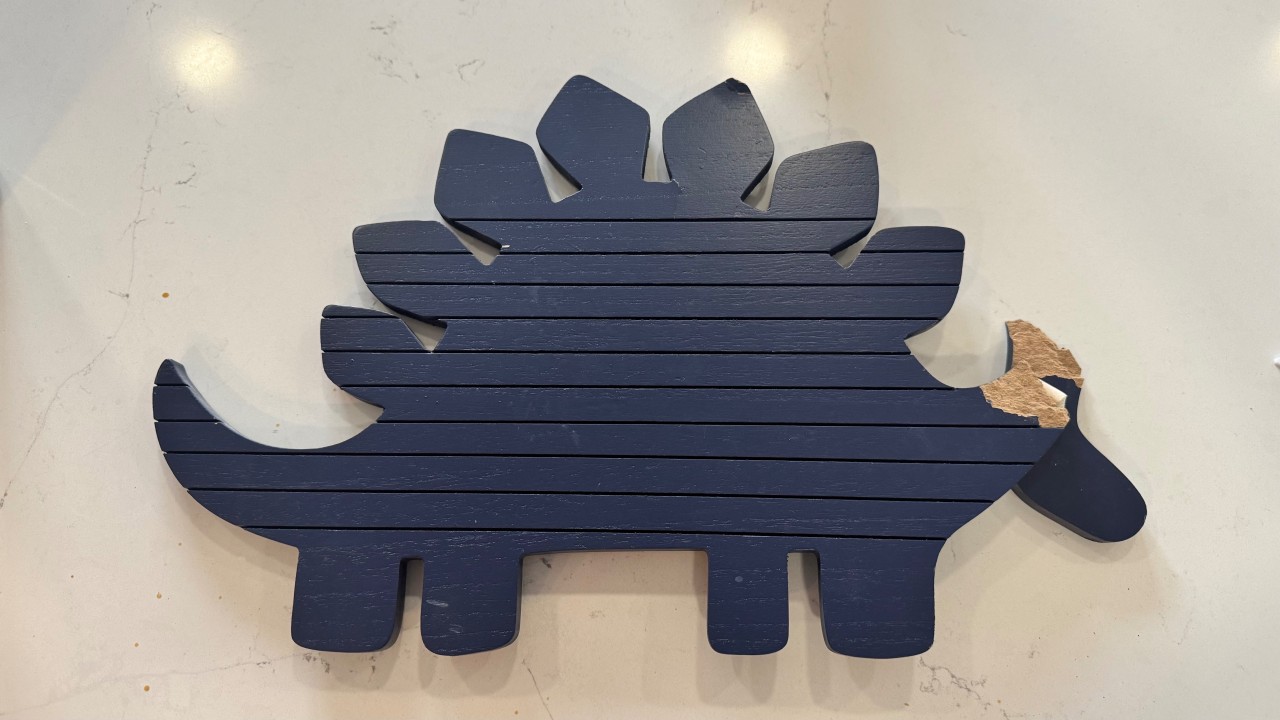
This experiment didn't start as an experiment. It started with a slammed door, a small wooden stegosaurus nameplate launching off a doorframe, sailing over a stair railing in what I can only describe as a brief and dramatic flight, and landing on the floor below looking like Nearly Headless Nick from Harry Potter, still attached, but just barely.
The dinosaur had been on that door for years. Which meant I had absolutely no idea where I'd originally bought it, and a quick Amazon text search wasn't turning up anything that looked like what I had. So I decided to try something I'd been meaning to test anyway: Amazon's AI-powered camera search, which lives inside the Amazon Shopping app and goes by the name Lens AI.
I went in looking for a stegosaurus replacement and ended up on a surprisingly interesting detour through Amazon's data controls.
The Permission Prompt That Made Me Stop and Read
Before I could even point my phone at the broken dinosaur, Amazon asked for camera access. That's normal. What wasn't quite so normal was how much was packed into that single permission request. The combination of "scan barcodes" and "detect your facial movements" in a single permission prompt is the kind of thing that makes you pause when all you're trying to do is find a replacement dinosaur. The iOS prompt mentioned that if my device supports TrueDepth technology, the app would also use my camera to detect facial movements for features like virtual try-on, and that I'd be prompted the first time I used one of those features.
 The iOS access request when I tried to use Lens AI
A shopping search. With facial movement detection baked into the same permission ask. I get it, I know these features exist, but there's something about seeing it all bundled together right when all I want to do is find a wall decoration that gives you pause. The ask felt bigger than the task. I clicked Allow because I wanted to actually run the experiment, and then I went digging into Amazon's app settings to understand exactly what I'd just agreed to.
Twenty Camera Settings. In a Shopping App.
What I found in Amazon's privacy and data settings was genuinely surprising, and I mean that in both directions. On one hand, scrolling through the full list of camera-enabled features was its own kind of experience.
 The detailed list of camera access I was not expecting to see
On the other hand, when I checked which features were actually enabled after I clicked Allow, the answer was just two: Camera Search and View Products with Augmented Reality. Those are the two features that are directly relevant to what I was trying to do. Everything else on that extensive list was toggled off.
That's more granular than I expected. Whatever mechanism Amazon is using to translate a single iOS permission grant into individual feature-level controls is doing something right. The gap between what the initial prompt implied and what was actually switched on was notable, and in this case, the gap worked in the user's favor.
What the Search Actually Found
So after all that, did Lens AI find my dinosaur? Sort of. It understood the shape immediately and returned stegosaurus results right away, which felt promising. The top match was a NoJo Wall Décor stegosaurus, and the silhouette was correct. But what I have is a wooden wall piece with letter slots built into the slats so you can customize it with a name, and what the search returned was a dinosaur designed for iron-on shirt transfers. Same silhouette, completely different product, and honestly the kind of thing that's hard to describe in a text search too, which is exactly why I reached for the camera feature in the first place.
The item I'm looking for may simply not exist on Amazon anymore, and that's a real possibility I've had to make peace with. But the search gave me enough to work with that I understand why the feature exists and when it would genuinely be useful. If you're holding something in your hand and you want to find the same thing or something close to it, Lens AI is a reasonable starting point, especially for products that are hard to describe in words.
What This Experiment Taught Me
- The initial camera permission request is broad and includes language about facial movement detection that may feel disproportionate if you're just trying to find a decorative item. That first impression matters.
- The actual permission behavior, once you're inside the app's data controls, is more precise than that first prompt suggests. Only the features relevant to my search were enabled, which was a better outcome than I anticipated.
- AI visual search works best when the product you're looking for is still being made and sold. It can identify shapes and categories with reasonable accuracy, but it can't conjure a discontinued item back into existence.
- If you use the Amazon app and haven't looked at your camera permissions settings recently, it's worth a few minutes to scroll through what's there. The list is long, most of it is off by default, and now you'll know what you're working with.
The dinosaur situation remains unresolved. But at least I learned something in the process.
Tools Used
Tool: Amazon Shopping App — AI Camera Search (Lens AI) - Where to Find It: Built into the Amazon Shopping app; tap the camera icon in the search bar - Cost: Free with the Amazon app